



Following up on my previous post, Creating #Excel Templates in #SQLServer #SSIS, this post walks you through how to use that template for new files. I should note that I had to change the data type for the Column_Default from NVARCHAR(4000) to TEXT because Excel didn’t like a column length of 4000 characters.
There are two ways to use a template, with a Script Task or with a File System Task. Today, I’ll cover the File System Task.
File System Task Method –
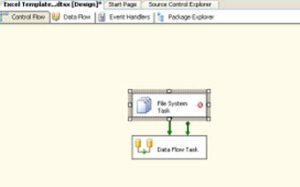
In your Control Flow, pull in a File System Task (FST) and connect the success precedence constraint to your Data Flow Task. This is important! If the FST fails, you can’t load your data and the package will (mysteriously) fail. If you want other behavior upon FST failure, you can set up error handling or reroute failure precedence constraints to another task.
Edit the FST and set IsDestinationPathVariable to True, click “New variable” in the DestinationVariable box to create the variable for the destination. For now, the variable Name will be DestinationPath, we’ll leave the Namespace as User and the Value type as String, and enter the Value as the same as our Template: D:\Temp\MyDatabaseSchema.xls.
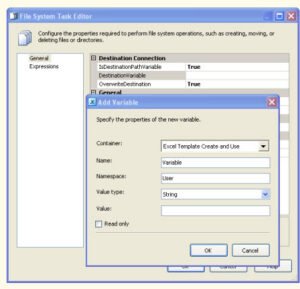
Set OverwriteDestination to True so the package doesn’t error out if the file doesn’t get removed properly. Leave Operation as “Copy file.” Moving will delete the template and we don’t want that. We just want a copy of the template with a new name.
On Source Connection, leave IsSourcePathVariable as False and click “New connection” in the SourceConnection box. Pointed the path to the Excel template file. Click OK.
This is what the final version of the File System Task will look like:
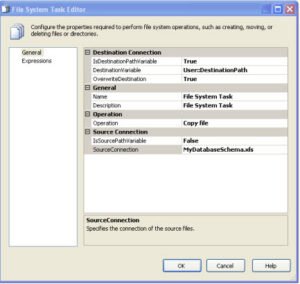
NOTE: You can use a connection for the Destination, but SSIS doesn’t like creating connections for files that don’t exist. The workaround is to manually copy the Template and rename it for this new connection. After you’ve finished creating the package, you can then delete the non-template file and it will work fine. I use a variable so I don’t have to deal with that outside-the-package nonsense, and because I always forget to delete the fake files.
Change the file name of the DestinationPath variable. Right-click the package whitespace and choose Variables (if you don’t already have your Variables window open). You’ll see the following:

This is where it gets funky. You can either name your template file a different name from your regular file (I usually call my template “MyFileTemplate” and the regular file “MyFile”) or add a date / time to the new file name.
If you want to use the date arrangement, click inside the Name area so the variable is highlighted and your Properties window changes to the variable properties. Find the property called “Expression” and click inside the value box (the empty box to the right of the property name). An box with three periods (ellipses) will appear. Click on that and the Expression Builder box will appear.
In the Expression box, enter your path name in double quotes without the file extension. In this case, it would be “D:\Temp\MyDatabaseSchema_”. Then concatenate this with the SSIS version of DatePart() to get the current year, month, and day. Finally, add the “.xls” to the expression, double up your backslashes because that’s an escape character, and you’re set. Your code should look similar to this:
“D:\\Temp\\MyDatabaseSchema_” + (DT_STR, 4, 1252) YEAR( GETDATE() ) + (LEN((DT_STR, 2, 1252) MONTH( GETDATE() ) ) == 1 ? (“0” + (DT_STR, 2, 1252) MONTH( GETDATE() ) ) : (DT_STR, 2, 1252) MONTH( GETDATE() ) ) + (LEN((DT_STR, 2, 1252)DAY( GETDATE() ) ) == 1 ? (“0” + (DT_STR, 2, 1252) DAY( GETDATE() ) ) : (DT_STR, 2, 1252) DAY( GETDATE() ) ) + “.xls”
Test the code by clicking “Evaluate Expression.” You should see the proper file path and file name, along with your date. If you get errors, you’ll need to fix them or you won’t be able to get out of Expression Builder. Once the code works, click OK, then set the variable’s “EvaluateAsExpression” property to True.
The final thing to do is go fix your Excel Connection Manager to use the new file rather than the template. Highlight the connection manager and click in the Expressions property. A Property Expressions box will pop up. Under Property, choose ExcelFilePath. Under Expression, click the ellipses box. It will take you back to Expression Builder. In the upper left hand corner, click the + sign next to Variables. Double-click or click-n-drag User::DestinationPath down into the Expression box.
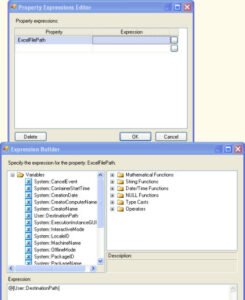
If you used the date code above, click evaluate expression, and see the original file name, you forgot to set DestinationPath’s EvaluateAsExpression to True. Don’t panic. You can fix it after this step.
Click OK on the Expression Builder, than on the Property Expressions window. Set the connection’s DelayValidation property to True. Then go back and fix any variable issues you may have encountered.
Save your package–it’s always a good idea to save multiple times during this process–and test it to make sure you didn’t miss anything.
Script Task coming later. I hope this series helps you out.



3 Responses
Excel connection manager.
HI,
I follwed the step and set excel expression for excelfile path.But as soon as I set My excel connection manager fails.Because now my Excel connection manager Excelfilepath is pointing to Destination Variable(with date appended) But that file not yet created.
Re: Excel connection manager.
What is the failure message?
And the file won’t create until after the package runs. Also, you have to have a fake file initially when building the package, which can be deleted after you’re done building the package.
Connection manager errors in runtime
Hi Brandie,
We have some SSIS packages that are coded with Excel Connection Managers exactly as in this article. However, these are coded 3-4 years ago by predecessors without any documentation. Now, I’m migrating these SSIS packages to SQL2012 server and I’m getting the error in the very last step where the data is exported from SQL table to Excel 2007 file. The error is
“[Execute SQL Task] Error: Failed to acquire connection “Excel_cm”. Connection may not be configured correctly or you may not have the right permissions on this connection.”
Now, I’ve full permissions on the Excel folder for my PC account. I’m not sure what other permissions do I need to add to get over this error. FYI, I’m running this package from SQL Server Data Tools for Visual Studio 2012. Any advise is of great help, as I’m stuck with this error for over a month without any luck.
Thanks – Madhu