
I’ve seen a lot of advice on the net lately advising people to use Excel templates for their SSIS packages, but I haven’t seen many articles discussing how to create the templates. So here’s a quick-n-dirty way of doing the template through SSIS (rather than by hand through Microsoft Office). For no particular reason, let’s say you want to put your user database schema into a file for later review.
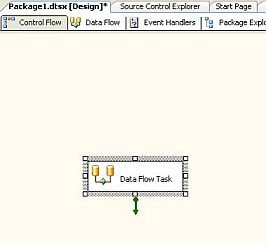
Pull a Data Flow Task into your Control Flow screen:
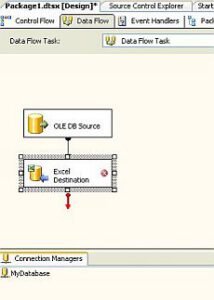
Go into the Data Flow Task and pull in the source (in this case OLE DB) and the destination (our Excel file).
Set up the OLE DB connection manager to connect to the user DB and call the manager something friendly. In this case, I used “MyDatabase.” Use a SQL Command for the following code:
SELECT Table_Catalog, Table_Schema, Table_Name, Column_Name, Column_Default, Data_Type, Character_Maximum_Length as ChLen, numeric_Precision, Numeric_Scale, Datetime_Precision
FROM Information_Schema.columns
ORDER BY Table_Name;
–This is my schema dump
Next, edit the Excel Destination.
Click New on the OLE DB Connection Manager line. An Excel Connection Manager popup window will appear. Enter the path where the sheet will be created (as soon as I click OK). In this case, the path is D:\Temp\MyDatabaseSchema.xls. Leave the Excel version at the default. Click OK.
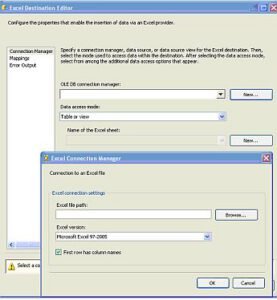
Then the “Name of the Excel sheet” (grayed out above) will become active. Click the New button again. A Create Table window will appear with text like this:
CREATE TABLE “Excel Destination” (
“Table_Catalog” NVARCHAR(128),
“Table_Schema” NVARCHAR(128),
“Table_Name” NVARCHAR(128),
“Column_Name” NVARCHAR(128),
“Column_Default” NVARCHAR(4000),
“Data_Type” NVARCHAR(128),
“ChLen” INTEGER,
“numeric_Precision” SMALLINT,
“Numeric_Scale” INTEGER,
“Datetime_Precision” SMALLINT
)
I usually alter the “Excel Destination” part of that script to be the name of my worksheet. In this case, it becomes “MyDB Schema”. Click OK, then OK again on the main Destination Editor screen. As soon as you do that, you have a blank Excel template that is ready to use with SSIS.
You don’t need to go through the Excel Destination to create the sheets. You can right-click in the Connection Managers area of BIDS and create Excel Connection Managers right there. I just like doing this sort of work as I’m creating the tasks that will use the connections. Using the same Excel file for different worksheets / connection managers is no big deal. You can have as many connections to different sheets as you want, up to the max limit of worksheets available in Excel. You just can’t have multiple tasks trying to use the exact same sheet at the exact same time. So mind your precedence constraints.
Next SQL article will be how to use the template in SSIS so you don’t have to recreate the Excel file every time.